
Then a friend’s dad passed away and the family spent weeks trying to find out where his photos were, what subscriptions he was paying for, and why there were random charges from cloud providers nobody recognized. They eventually got access to some accounts. Others? Gone. Two factor authentication tied to a phone number that no longer existed. Password manager locked behind an email account they could not open. The usual mess.
And here’s the annoying part. He was organized in real life. Paperwork. Folders. Labeled drawers.
Online, though, it was like someone dumped a thousand receipts into a windy parking lot.
So, that’s what this guide is. Not a legal textbook. Not a doomsday prepper thing. Just a practical, slightly obsessive way to track your cloud assets so your people can actually handle your digital life if they ever need to.
What “digital estate” really means now
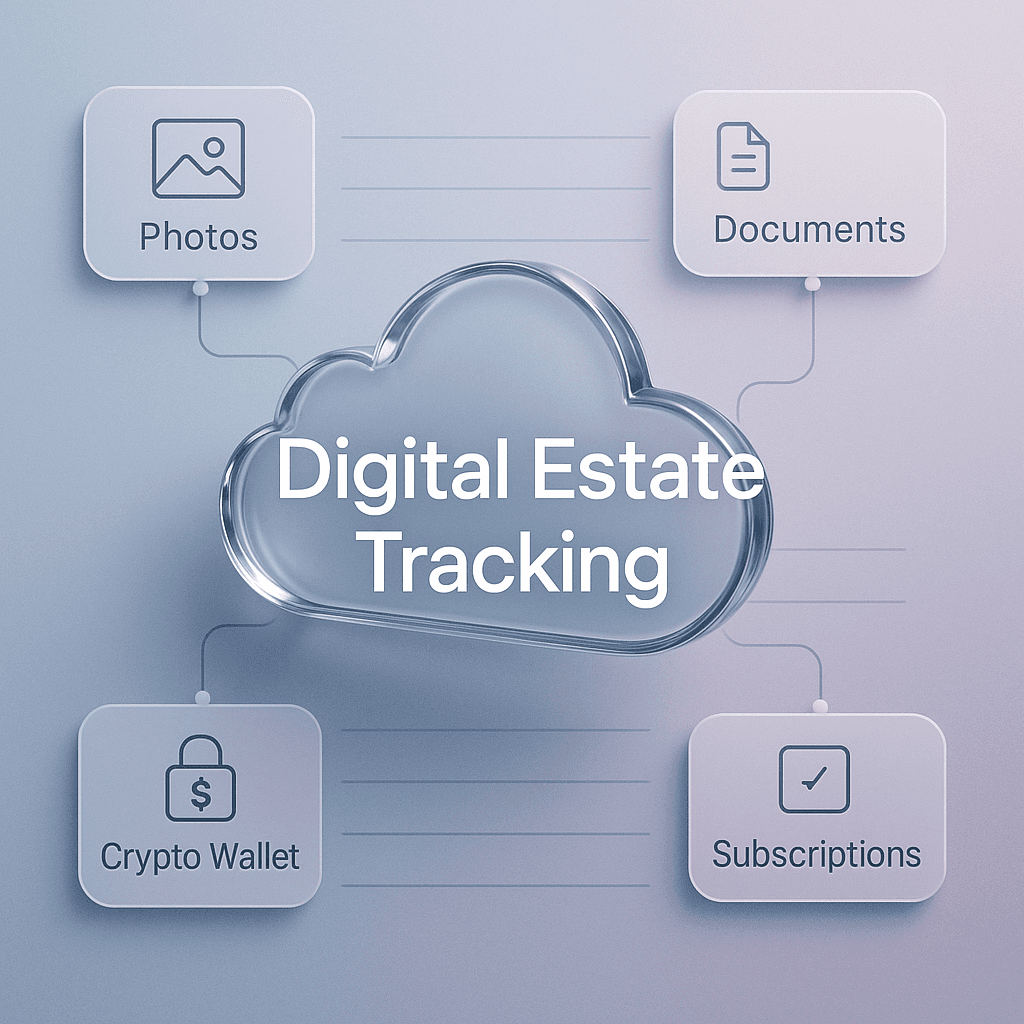
Your digital estate is basically everything you own or control digitally that has value, access, or risk attached to it.
Not just your bank logins.
Think broader:
- Cloud storage accounts (Google Drive, iCloud, Dropbox, OneDrive, Box, Backblaze, etc.)
- Photo libraries and backups
- Email accounts (which often unlock everything else)
- Password managers
- Social accounts, communities, and creator platforms
- Domain names and DNS
- Hosting, server accounts, VPNs
- SaaS subscriptions you forgot you had
- Crypto exchanges and wallets
- Business tools (Stripe, PayPal, Shopify, Notion, Slack, GitHub, Figma)
- Device ecosystems (Apple ID, Google account, Microsoft account)
- Digital purchases (ebooks, movies, software licenses)
- Anything with stored data that matters, or billing that keeps running
Cloud asset tracking is just the system you use to map all that out. What exists, where it lives, who can access it, what it costs, and what should happen to it if you are not around.
Why cloud asset tracking is the part most people miss
People do one of two things:
- They write down passwords somewhere and call it a plan.
- They do nothing and assume their family will “figure it out”.
Neither works.
Because the issue isn’t only credentials. It’s discovery and context.
Your partner might eventually get into your email. Great. But how do they know which cloud services matter? Which ones store family photos? Which ones are tied to billing? Which ones contain business contracts? Which ones can be deleted safely?
Cloud asset tracking answers:
- What services exist?
- What’s stored there?
- How do you access it?
- What devices or numbers are tied to login?
- Who is the designated person to handle it?
- What is the action plan? Keep, transfer, download, close, memorialize.
That’s the missing layer.
Step 1: Do a “cloud inventory” sweep (without overthinking it)
You want an inventory that is complete enough to be useful, not perfect.
Start with these three quick discovery methods. Do all of them. They catch different stuff.
1) Search your email for receipts and signups
Pick your main email accounts and search:
- “welcome to”
- “subscription”
- “invoice”
- “receipt”
- “your trial”
- “payment successful”
- “your card was charged”
- “billing”
- “cloud”
- “storage”
- “domain renewal”
- “two factor”
- “security code”
Check Promotions and Spam too. Annoying, but worth it.
Make a list as you find services. Even if you’re not sure it matters, add it. You can prune later.
2) Check your bank and card statements for recurring charges
This is where you find the sneaky ones.
Look for:
- Apple, Google, Microsoft recurring charges
- Dropbox, iCloud, Google One, OneDrive
- Backup services (Backblaze, Carbonite)
- Hosting (AWS, Google Cloud, Azure, DigitalOcean)
- VPNs
- Domain registrars (Namecheap, GoDaddy, Cloudflare)
- Random SaaS tools
If you have a business, check Stripe, PayPal, and any corporate cards too.
3) Look at saved passwords and app lists
If you use a password manager, export a list or at least scan it for cloud providers and admin tools.
Also check:
- Your phone’s app list
- Browser saved logins
- Authenticator app accounts (Google Authenticator, Authy, 1Password, etc.)
This helps surface the accounts that do not send receipts, or that were created long ago.
Step 2: Categorize your cloud assets (so it’s not just a messy spreadsheet)
Once you have a list, you want to group it by function. This makes decisions easier later.
Here’s a simple categorization that works for most people:
Core identity and recovery (the crown jewels)
If someone gets access to these, they can usually recover everything else.
- Primary email accounts
- Apple ID / Google account / Microsoft account
- Password manager
- Phone number carrier account (yes, the carrier matters)
- Authenticator apps and recovery methods
Storage and backups
- Google Drive, Dropbox, OneDrive, iCloud Drive
- Photo libraries (Google Photos, iCloud Photos)
- Backup tools (Backblaze, Time Machine backups in the cloud, NAS backups, etc.)
Financial and billing
- Bank portals
- PayPal
- Stripe
- Subscription management (Apple subscriptions, Google Play subscriptions)
- Crypto exchanges
Business and professional
- Domains and DNS
- Hosting and cloud compute
- Business email and workspace accounts
- GitHub, GitLab, Bitbucket
- Client workspaces (Notion, Asana, Trello)
- Invoicing, CRM, analytics
Social and public facing
- Facebook, Instagram, X, TikTok
- YouTube
- Blogs and newsletters
- Community logins (Discord, Slack, forums)
This grouping matters because your instructions will differ. Your family photos are not treated like your old Twitter account. Hopefully.
Step 3: Create a cloud asset register (the document that actually saves people)
Call it a “Digital Estate Inventory” if you want to sound official.
I like “Cloud Asset Register” because it reminds you to track ownership and storage, not just logins.
Use whatever format you will maintain. A spreadsheet is fine. A Notion database is fine. A paper binder can work, but it gets stale fast. The best system is the one you will update.
Suggested fields (keep it boring and clear)
For each asset, track:
- Service name
- URL
- Account email/username
- What it contains (one sentence, plain language)
- Why it matters (photos, money, business continuity, sentimental, legal)
- 2FA method (SMS, authenticator app, security key)
- Recovery options (recovery email, backup codes location, trusted devices)
- Billing method (card, PayPal, Apple, Google)
- Renewal date / billing cycle
- Who should get access (name, relationship)
- What should happen (keep, transfer, download, delete, memorialize)
- Notes (device needed, encryption key location, etc.)
If you do nothing else, do this part. This is the backbone.
Step 4: Map the dependencies (because accounts are not independent)
This is where people get wrecked.
Most cloud accounts depend on:
- A primary email
- A phone number for SMS
- A trusted device
- A password manager vault
- An authenticator app
- Sometimes a physical security key
If your executor can’t access the primary email, they will struggle to reset anything. If they can’t access the phone number, they can’t pass 2FA. If the authenticator is on a locked phone, same story.
So add a “Dependency Map” section to your register. Literally a small diagram or bullet list.
Example:
- Password manager depends on: primary email + 2FA (authenticator on iPhone)
- Google account depends on: phone number + recovery codes in safe
- iCloud depends on: trusted MacBook + recovery contact (spouse)
You’re trying to reduce single points of failure. Or at least document them.
Step 5: Handle the 2FA problem like an adult (it’s the #1 blocker)
Two factor authentication is great. Until someone needs to get in without you.
You do not want to disable 2FA. You want to plan for it.
Here are the practical options, and you can mix them.
Backup codes, stored properly
Many services let you generate backup codes. Do it for your core accounts.
Store them:
- In a secure password manager vault with emergency access, or
- Printed and stored in a physical safe, or
- Sealed in an envelope with your will documents
Do not store them in a random notes app.
Use a password manager with emergency access features
Most serious password managers allow an emergency contact or some form of recovery workflow. Set it up.
The goal is not “my spouse knows all my passwords”. The goal is “my spouse can request access, and it’s granted under defined conditions”.
Cleaner. Less risky day to day.
Consider a hardware security key, but document it
If you use security keys, label them and document:
- Where the backup key is stored
- Which accounts it protects
- Any PIN requirements
Again, this is about preventing a future scavenger hunt.
Step 6: Decide what happens to each cloud asset (keep, transfer, delete)
Tracking is only half the job. The other half is instructions.
For each asset, pick an outcome:
Keep and provide access
For family photos, important documents, business archives. Things someone should retain.
Transfer ownership
Domains, business accounts, subscription admin roles, creator channels, monetized assets.
This can involve formal transfer processes, not just sharing passwords. For example, domains often need registrar level access. Business workspaces may need admin reassignment.
Download and archive, then close
Some accounts do not need to stay open forever. Export the data, save it in an archive location, then close the subscription to stop billing.
Delete
If it is sensitive, personal, or simply unnecessary. But be careful. Deleting can be irreversible.
Memorialize
Some platforms allow memorialization rather than deletion. This is a personal choice. Just make it explicit so someone is not guessing.
Step 7: Build a “cloud asset tracking routine” (so it stays current)
A digital estate plan that is not updated is basically a time capsule of wrong information.
Set a repeating reminder. Quarterly is fine. Twice a year is fine.
In your routine, do these quick checks:
- New subscriptions added?
- Any cancelled services?
- Any email changes?
- Any phone number changes?
- Any 2FA changes?
- Any new domains, wallets, or storage locations?
- Any new devices added as trusted devices?
- Any major new data sets that should be backed up?
And update the register. It takes 15 minutes if you don’t let it sprawl.
Step 8: Put your cloud asset register somewhere your executor can actually find
This is awkward but important.
Your register is useless if it’s hidden behind the accounts nobody can access.
A few workable approaches:
- Store the register in a password manager and set emergency access.
- Store it in an encrypted file and put the decryption key instructions in a physical location.
- Print a minimal “locator” document that says where the real register is.
That locator document can be simple:
- The name of your password manager
- Where the emergency access is set
- Where backup codes are stored
- Who to contact (lawyer, accountant, business partner)
Do not include every password on paper unless you really know what you are doing and accept the risk.
Step 9: Special cases people forget (and then regret)
A few cloud assets cause outsized headaches.
Domains and DNS
If you own a domain name, it can control email, websites, logins, everything.
Track:
- Registrar
- Login email
- Auto renew status
- Payment method
- DNS provider (sometimes separate)
- Where the website is hosted
And specify who should receive the domain. Otherwise it expires, gets grabbed, and that’s that.
Cloud photo libraries
People assume photos are “on the phone”. Nope.
If your photos matter, document:
- Which service is the source of truth (Google Photos or iCloud Photos, not five things)
- Whether full resolution is stored
- Whether partner sharing is enabled
- Where exports should be saved
Also. Check storage limits. Running out of space can silently break backups.
Business workspaces and shared drives
Google Workspace, Microsoft 365, Slack, Notion, Dropbox Business. These have admin roles.
Make sure:
- There is more than one admin
- Billing contact is not only you
- Critical data is in shared storage, not a personal drive
Crypto
If you have crypto and you do not document it, assume it is gone.
At minimum, track:
- Where it is held (exchange vs wallet)
- What access method exists
- Where recovery phrases are stored (and how)
- Who should inherit it
Be careful here. This is one area where you might want professional advice, because the line between “documenting” and “creating a theft risk” is thin.
A simple cloud asset tracking template (copy this)
You can paste this into a spreadsheet or Notion.
|
Category |
Service |
URL |
Login email/username |
2FA method |
Recovery info location |
Billing |
What’s stored / purpose |
Owner now |
Intended recipient |
Action (keep/transfer/archive/delete) |
Notes |
|
Identity |
Primary email |
|
|
|
|
|
|
|
|
|
|
|
Identity |
Password manager |
|
|
|
|
|
|
|
|
|
|
|
Storage |
Photos |
|
|
|
|
|
|
|
|
|
|
|
Storage |
Cloud drive |
|
|
|
|
|
|
|
|
|
|
|
Business |
Domain registrar |
|
|
|
|
|
|
|
|
|
|
|
Business |
Hosting |
|
|
|
|
|
|
|
|
|
|
|
Finance |
PayPal |
|
|
|
|
|
|
|
|
|
|
Keep it boring. You want it usable under stress.
Common mistakes (so you can avoid the same chaos)
“My family knows my passwords”
They probably don’t. Or they know one password. Or an old password. Or the password that only works if the 2FA code goes to your phone.
“Everything is in my email”
Email access helps, but if your phone number is dead or your authenticator is locked, your email might not be enough to reset anything.
“I’ll do it later”
Sure. Later becomes never. The best time to build the register is right after you pay a bill you do not recognize. Because you will be motivated.
“I wrote it down once, years ago”
If your register is not maintained, it becomes a trap. Someone follows it, hits dead ends, and wastes time.
The part nobody likes: tell one person, clearly
Pick a person. Name them. Tell them they are your digital executor or at least the person who knows where the plan is.
You do not need to give them access right now. You just need to tell them:
- Where the register lives
- How emergency access works
- Where backup codes or keys are stored
- Who to contact if it involves business accounts
This one conversation saves a ridiculous amount of time later.
Wrapping it up (what to do this week)
If you want a simple, realistic plan:
- Spend 45 minutes doing the cloud inventory sweep.
- Create the cloud asset register with the fields above.
- Document 2FA recovery and backup code locations for your core identity accounts.
- Decide actions for the big categories: photos, storage, money, business, domains.
- Tell one trusted person where the plan is.
That’s it. Not perfect. But functional. And honestly, that’s the goal.
Because someday, someone is going to need to untangle your digital life. You can either leave them a map.
Or leave them a parking lot full of receipts in the wind.
FAQs (Frequently Asked Questions)
What does the term ‘digital estate’ really mean?
Your digital estate encompasses everything you own or control digitally that holds value, access, or risk. This includes cloud storage accounts, email, password managers, social media, domain names, subscriptions, crypto wallets, business tools, device ecosystems, digital purchases, and any stored data or ongoing billing.
Why is cloud asset tracking important for managing a digital estate?
Cloud asset tracking helps map out what digital services exist, what’s stored there, how to access them, associated devices or numbers, who manages them, and what actions should be taken if you’re not around. It adds context beyond just passwords and enables your family to handle your digital life effectively.
What are common mistakes people make when planning their digital estate?
Many either just write down passwords without context or do nothing at all assuming their family will figure it out. Both approaches fail because they don’t address discovery of services, understanding their importance, billing ties, and appropriate handling instructions.
How can I start creating an inventory of my cloud assets?
Begin with a ‘cloud inventory’ sweep by: 1) Searching your main email accounts for receipts and signups using keywords like ‘subscription’, ‘invoice’, ‘receipt’, etc.; 2) Checking bank and card statements for recurring charges related to cloud services; 3) Reviewing saved passwords in password managers and app lists to uncover accounts without receipts or old logins.
How should I categorize my cloud assets for better management?
Group your assets by function to simplify decisions: Core identity and recovery (primary emails, password managers), Storage and backups (Google Drive, photo libraries), Financial and billing (PayPal, subscriptions), Business and professional tools (domains, hosting), Social and public-facing accounts (Facebook, LinkedIn). Each category requires different handling instructions.
What challenges might my family face without proper digital estate planning?
Without proper planning, families may struggle with inaccessible accounts due to two-factor authentication tied to old phone numbers or locked password managers. They might spend weeks searching for important photos or paying for unnoticed subscriptions. Proper tracking prevents this confusion and ensures smooth management of your digital life.