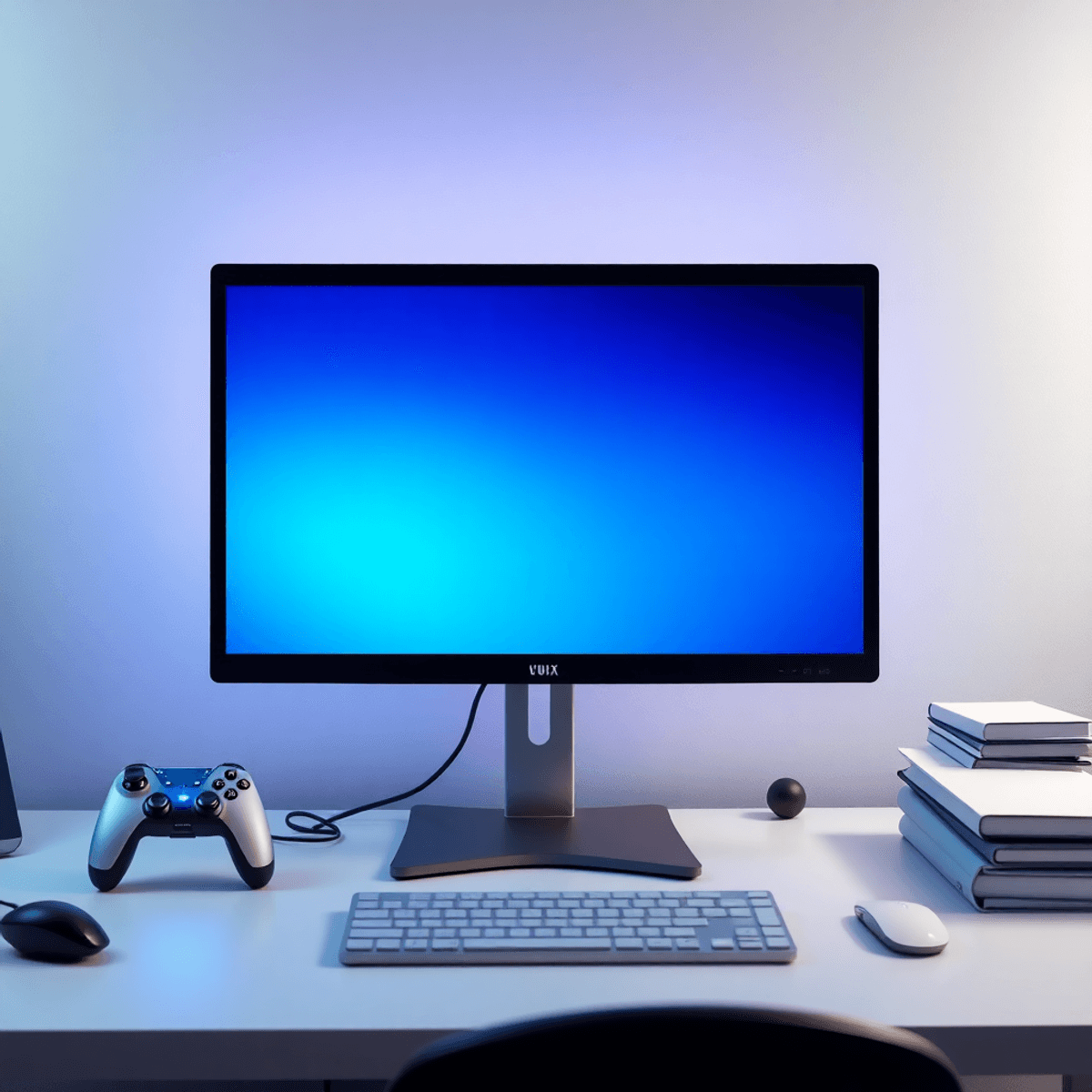

Budget monitors used to mean… you know. Washed out colors, weird ghosting, stands that wobble if you breathe near the desk.
But in 2026, “cheap” doesn’t automatically mean “bad”. A lot of the value now is in the boring stuff that matters after week two. Eye comfort. Backlight behavior. A stand that doesn’t force you into shrimp posture. And yes, still enough speed for gaming so you do not feel like you are dragging your mouse through mud.
So this is a hardware review focused on one thing: 3 specific monitors that are budget friendly and actually care about your eyes.
I picked them to cover three price tiers, because “budget” means different things depending on whether you are a student, a remote worker, or someone trying to game at 165Hz without blowing rent money.
Quick note before we jump in. I am prioritizing eye care features like:
- Flicker Free backlight (helps reduce headaches for a lot of people)
- Low blue light modes (useful at night, though not magic)
- Matte coating and sensible brightness range
- Ergonomics (height and tilt matter for neck and eye strain)
- And, for gaming, VRR (FreeSync, and often G Sync compatible)
Alright. Let’s get into the winners.
The 3 Best Budget Monitors for 2026 (With Eye Care in Mind)
1. ASUS VY249HF (24 inch, 1080p, 100Hz)
Best ultra budget eye care pick
If you want something simple that will not punish your eyes during long work sessions, the ASUS VY249HF is one of the easiest recommendations. It is not trying to be a “pro gamer” monitor. It is trying to be comfortable, clean, and usable for everyday stuff.
And honestly, that is the point.
Typical price in 2026: around $90 to $120
Best for: students, office work, home setups, casual gaming
Resolution and refresh: 1920×1080, 100Hz
Panel type: IPS (colors and viewing angles are generally solid)
Eye care features that actually matter
ASUS leans hard into its “Eye Care” branding, and on this model you get the basics you want at this price:
- Flicker Free backlight tech (reduces PWM flicker)
- Low Blue Light modes (multiple levels)
- Matte screen that does not act like a mirror all day
This is the kind of monitor you can stare at for 6 to 10 hours, then realize you did not get that weird burning eye feeling. That’s the win.
Gaming and motion
No, it is not 165Hz. But 100Hz is still a noticeable upgrade from 60Hz, especially for shooters and general desktop smoothness. If you play Valorant, Fortnite, Apex, whatever, it feels more responsive than you expect for the money.
You also typically get adaptive sync support in this category, though you should check the exact listing. ASUS often pairs these with FreeSync style VRR.
The tradeoffs
At this price, you are not getting:
- Height adjust stand (usually tilt only)
- Great HDR (basically ignore HDR marketing here)
- Deep blacks in a dark room (IPS glow is a thing)
Still, if your goal is cheap, comfortable, and not awful, it nails it.
Who should buy it: anyone who wants the lowest cost monitor that still respects eye comfort and feels modern.
2. Dell S2722DC (27 inch, 1440p, USB C)
Best budget work monitor for eye comfort and clarity
This is the one I keep coming back to for work. The Dell S2722DC is not the newest thing on earth, but it continues to be one of the best value “real life” monitors.
Because 1440p at 27 inches is just… right. Text is sharper. You can fit more on screen. You are not constantly zooming in and out. That alone can reduce eye strain because you are not squinting at UI all day.
Typical price in 2026: around $180 to $240
Best for: remote work, productivity, studying, coding, light gaming
Resolution and refresh: 2560×1440, usually 75Hz
Panel type: IPS
Connectivity highlight: USB C with power delivery (varies by region, but this model is known for it)
Eye care stuff (the real reason it is here)
Dell’s comfort features on this line are usually very dependable:
- Flicker Free backlight
- ComfortView / Low blue light mode
- Good factory tuning for brightness and color so you are not cranking it to 100 percent just to make it usable
Also, the screen finish and brightness behavior are generally pleasant. Not too glossy, not weirdly grainy.
Ergonomics matters more than people admit
A lot of “eye strain” is really posture strain that turns into eye strain. You lean in, you hunch, your face gets closer to the screen, you blink less. Dell’s stands in this series are often better than the random budget brands:
- Height adjustment (common on Dell)
- Tilt and swivel
- VESA mounting if you want an arm later
That is huge for comfort. Getting the top of the display closer to eye level helps more than yet another “blue light” toggle.
Gaming on it is fine, not the main event
At 75Hz, it is not a dedicated gaming panel. But it is fine for casual play, and 1440p looks clean. If your main life is email, docs, spreadsheets, Figma, code, and you game a bit at night, this is a very sane pick.
The tradeoffs
- Refresh rate is not high, so competitive gamers will want more
- Contrast is typical IPS, so dark room movie nights are not OLED vibes
- HDR is basically not a selling point here
Who should buy it: anyone who wants a budget friendly workhorse monitor that feels easy on the eyes and cleans up your daily workflow.
3. AOC Q27G3XMN (27 inch, 1440p, 180Hz, Mini LED)
Best budget gaming monitor that still treats your eyes decently
If you want gaming speed without dropping premium money, the AOC Q27G3XMN is one of the most interesting “budget but serious” monitors around. It is a 1440p high refresh display with Mini LED backlighting.
This model got attention because it brings real HDR capability to a price range that usually fakes it.
Typical price in 2026: around $250 to $330
Best for: gaming first, but still usable for work
Resolution and refresh: 2560×1440, up to 180Hz
Backlight: Mini LED with local dimming
Adaptive sync: commonly FreeSync, often G Sync compatible in practice
Eye care, yes even for a gaming monitor
AOC includes the usual comfort stack:
- Flicker Free (important because some gaming displays can be aggressive with backlight behavior)
- Low Blue Light mode
Now, let’s be real. If you run this thing at maximum brightness with HDR blasting in a dark room for hours, your eyes will feel it. That is not a flaw, that is physics. But at sensible SDR brightness levels, it can be comfortable for long sessions.
One practical tip. For night gaming, set SDR brightness around 80 to 120 nits, use a warmer color temp, and let VRR do the smoothness work instead of cranking brightness to stay “alert”.
Motion and responsiveness
This is where it earns its spot.
- 180Hz at 1440p feels fast and clean
- VRR helps a lot if your GPU is not constantly pegged at 180fps
- Input response generally feels snappy in this class
It is the kind of monitor where you can actually tell you upgraded, even if your last display was “fine”.
Mini LED in budget land
Mini LED with local dimming is the headline feature. In games and movies that support HDR well, highlights pop in a way normal edge lit monitors just cannot do.
But. Local dimming can introduce blooming around bright objects on dark backgrounds. You will notice it sometimes, especially on desktop UI. That is part of the trade.
For mixed work and play, you may end up using:
- SDR mode for daytime work
- HDR mode for games and content
The tradeoffs
- Local dimming can be distracting for some people in desktop use
- Color and gamma can shift depending on the mode you use
- Stand ergonomics vary, so check if it has height adjustment, or plan for a VESA arm
Who should buy it: gamers who want 1440p high refresh and real HDR punch on a budget, but still want basic eye comfort features to be present.
How I’d Choose Between These 3 (Real Life Version)
If you are still stuck, here is the simplest breakdown.
If money is tight and you need something now
Get the ASUS VY249HF.
It is cheap, comfortable, and 100Hz makes it feel way less “office 2012” than typical bargain screens.
If you work all day and want your eyes to chill out
Get the Dell S2722DC.
27 inch 1440p is the sweet spot for text clarity, and USB C reduces cable chaos. Less clutter, less friction, less stress. It adds up.
If you game a lot and want the biggest “wow” per dollar
Get the AOC Q27G3XMN.
High refresh plus Mini LED is a ridiculous combo for the price, and it still covers the basic eye care checklist.
A few quick eye comfort settings that help on any monitor
You can buy the right monitor and still suffer if you run it like a flashlight.
These are boring tips, but they work:
- Drop brightness. Most people run 200 to 350 nits indoors and wonder why their eyes feel cooked. Try 80 to 140 nits for typical rooms.
- Match color temperature to time of day. Cooler during bright day if you like it, warmer at night.
- Use bias lighting. A small lamp behind the monitor can reduce perceived contrast at night.
- Set proper height. Top of screen roughly at eye level, not six inches below.
- Take breaks. The 20 20 20 rule is annoying, but it is annoying because it works.
Final picks recap (price and eye care focused)
- Best under $120: ASUS VY249HF (Flicker Free, Low Blue Light, easy on the eyes, 100Hz)
- Best for work under $250: Dell S2722DC (Flicker Free, ComfortView, 1440p clarity, USB C)
- Best gaming value under $330: AOC Q27G3XMN (Flicker Free, Low Blue Light, 180Hz, Mini LED HDR)
If you tell me your budget, your GPU or laptop model, and whether you work in a bright room or a dark one, I can point you to the safest pick out of the three in like two lines.
FAQs (Frequently Asked Questions)
What defines a good budget monitor for eye comfort in 2026?
A good budget monitor in 2026 prioritizes features like flicker-free backlight, low blue light modes, matte screen finish, sensible brightness range, and ergonomic stands that support height and tilt adjustments. These features help reduce eye strain during long sessions without sacrificing performance, even at affordable price points.
Which monitor is best for students or casual users looking for an ultra-budget eye care option?
The ASUS VY249HF is the best ultra-budget eye care pick. It offers a 24-inch 1080p IPS display with 100Hz refresh rate, flicker-free backlight, low blue light modes, and a matte coating to minimize glare. Priced around $90 to $120, it suits students and casual gamers seeking comfort and usability without breaking the bank.
What makes the Dell S2722DC ideal for remote workers focusing on productivity and eye comfort?
The Dell S2722DC features a 27-inch 1440p IPS panel with 75Hz refresh rate and USB-C connectivity with power delivery. Its flicker-free backlight, ComfortView low blue light mode, well-calibrated brightness and color settings, plus ergonomic stand with height adjustment, tilt, swivel, and VESA mount options make it excellent for reducing eye strain during extended work sessions.
How does refresh rate impact gaming experience on budget monitors?
Refresh rates like 100Hz or 75Hz on budget monitors provide smoother motion compared to standard 60Hz panels. For casual gaming titles such as Valorant or Fortnite, 100Hz (as on ASUS VY249HF) offers noticeable responsiveness without high cost. However, competitive gamers may prefer higher refresh rates beyond these for optimal performance.
Are HDR and deep black levels important in budget monitors focused on eye care?
HDR capabilities and deep blacks are generally not priorities in budget monitors emphasizing eye comfort because IPS panels often have typical contrast ratios leading to IPS glow in dark rooms. The focus is instead on reducing eye strain through flicker-free technology, low blue light modes, ergonomic design, and matte screens rather than advanced HDR features.
Why is ergonomics critical in choosing a budget monitor for reducing eye strain?
Ergonomics significantly affect posture which directly influences eye strain. Adjustable stands allowing height changes and tilt prevent users from adopting ‘shrimp posture’ or leaning forward excessively. This reduces neck tension and keeps the eyes at a comfortable distance from the screen, minimizing fatigue over long periods of use.